Read your Payments report
Reports → Sales shows where the money is: what came in by each way of paying, what was refunded, and what you kept. Use it to cash up the drawer and to match bank deposits.
- 1
Open Reports and switch to the Sales tab. Pick Today, Yesterday, Last 7 days, Last 30 days, This month, Last month or your own dates. Days follow your restaurant’s timezone.
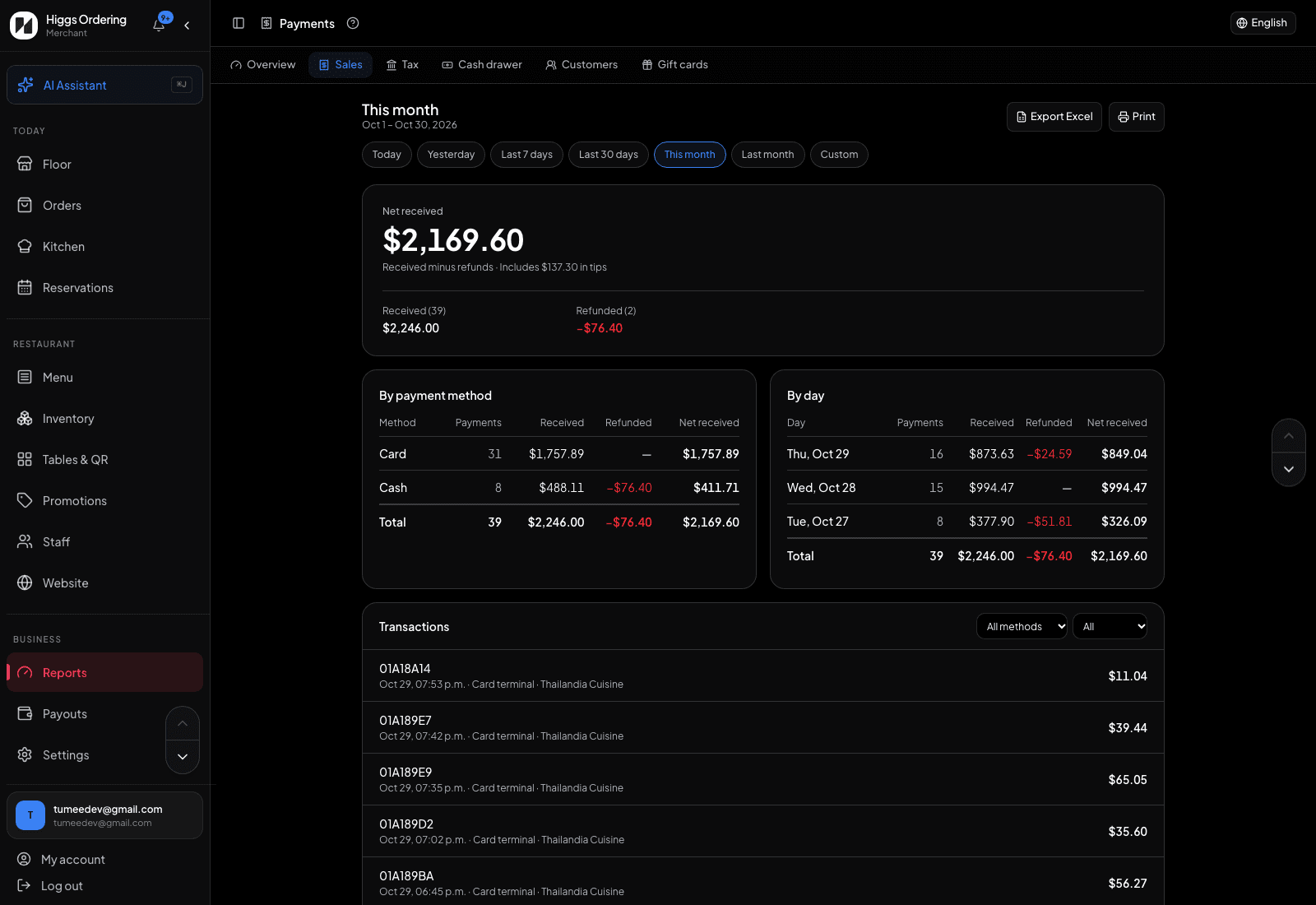
Net received, then the same money by payment method and by day. - 2
Net received is the headline: everything received minus refunds. Underneath, Received and Refunded show the counts behind it. If online payments were taken, Provider fees and After fees show what reaches your bank. The line under the number says how much of it was tips.
- 3
By payment method lists cash, card terminal, online and others with received, refunded and net for each. Count the drawer against the Cash net and the terminal’s batch report against Card.
- 4
For a range of days, By day lists each trading day’s net. That is the figure a card deposit or a bank transfer is matched to.
- 5
Transactions lists every payment and refund with its order, table, time and staff member. Filter by method or show only refunds.
- 6
Print sends a short slip to your receipt printer: totals by method, net received and the day lines. Export Excel adds every transaction on its own sheet for your bookkeeper.
TipPayments include tips, because that is the money that moved. Net received will be higher than net sales on the Overview by the tax and tips collected.