Cancel an order or issue a refund
Kitchen ran out, guest changed their mind, wrong dish went out — you can cancel an unpaid order, or refund a paid one in full or in part.
- 1
Open the order from the Orders page or the floor plan and choose Cancel or Refund.
- 2
Cancelling asks for an optional reason. It’s saved to the order’s activity trail, so you can see later who cancelled what and why.
- 3
If the order was already paid, the cancel dialog offers to refund it in the same step. Only the account owner can issue refunds — a manager cancelling a paid order leaves the money charged.
- 4
Refunding on its own lets you choose the full amount or a partial one, up to what’s actually been paid.
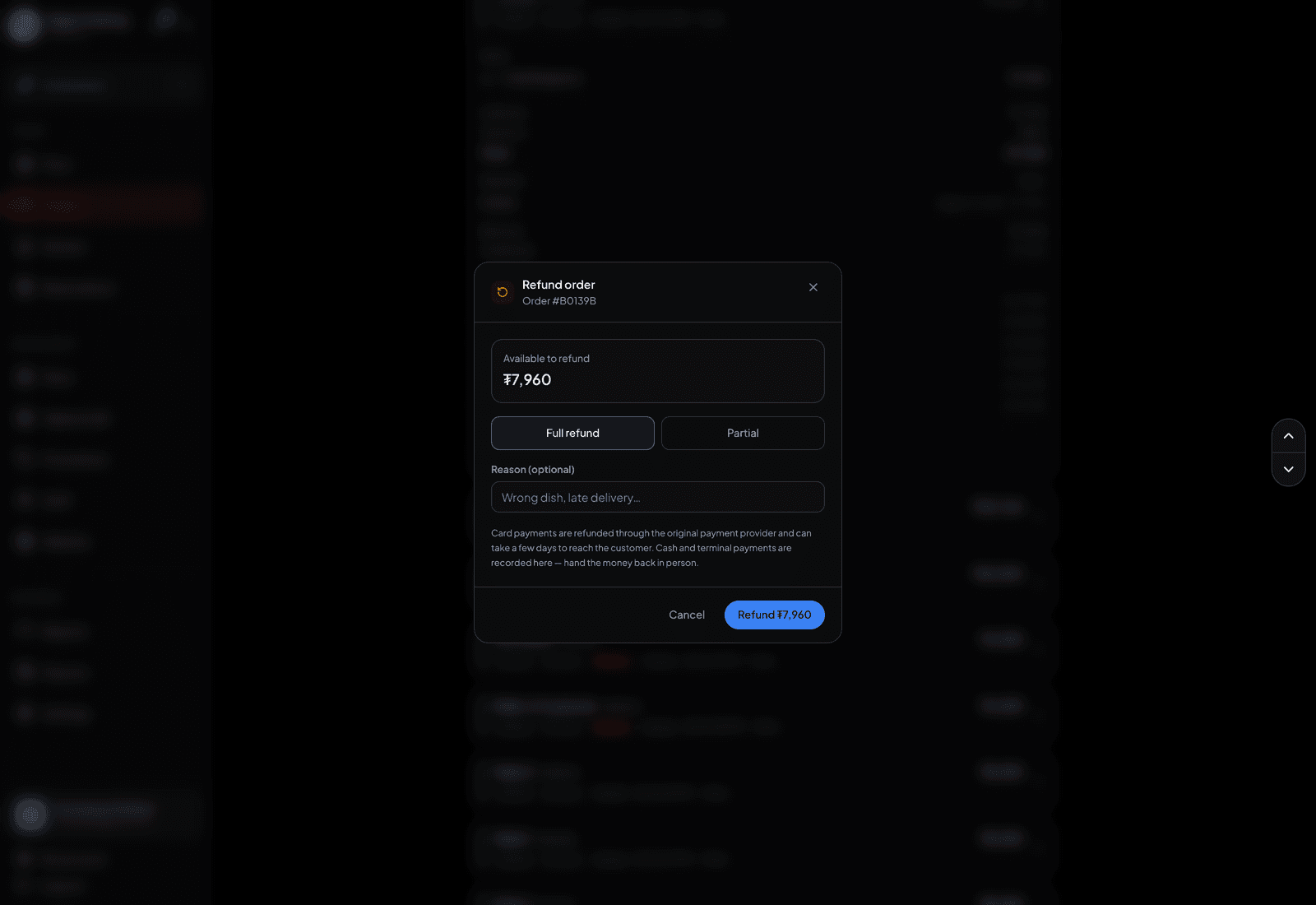
Full or partial, with a reason for the trail. - 5
Card refunds go back through the original payment provider and can take a few days to reach the guest. Cash and terminal refunds are only recorded here — you hand the money back in person.
TipRefunds show separately in Reports and in the tax report, and are deliberately not netted out of gross revenue — so your sales figures still show what actually sold.