Take an order yourself (POS)
Guests don’t have to order from their phone. Your staff can ring up a table, a walk-in, or a delivery straight from the Floor page — on a phone, tablet, or the desk computer.
- 1
On the Floor page, tap a table to start a dine-in order, or use the toolbar for a walk-in or a delivery.
- 2
For walk-ins and deliveries you can look up a returning customer by phone or email, or register a new one. It’s optional — skip it and the order still goes through.
- 3
Add items from the menu panel. Search by name, pick required options, and set the quantity.
- 4
Adjust an item for a fussy guest: tap an ingredient to mark it removed, less, or extra, and add special instructions in plain words ("no onions").
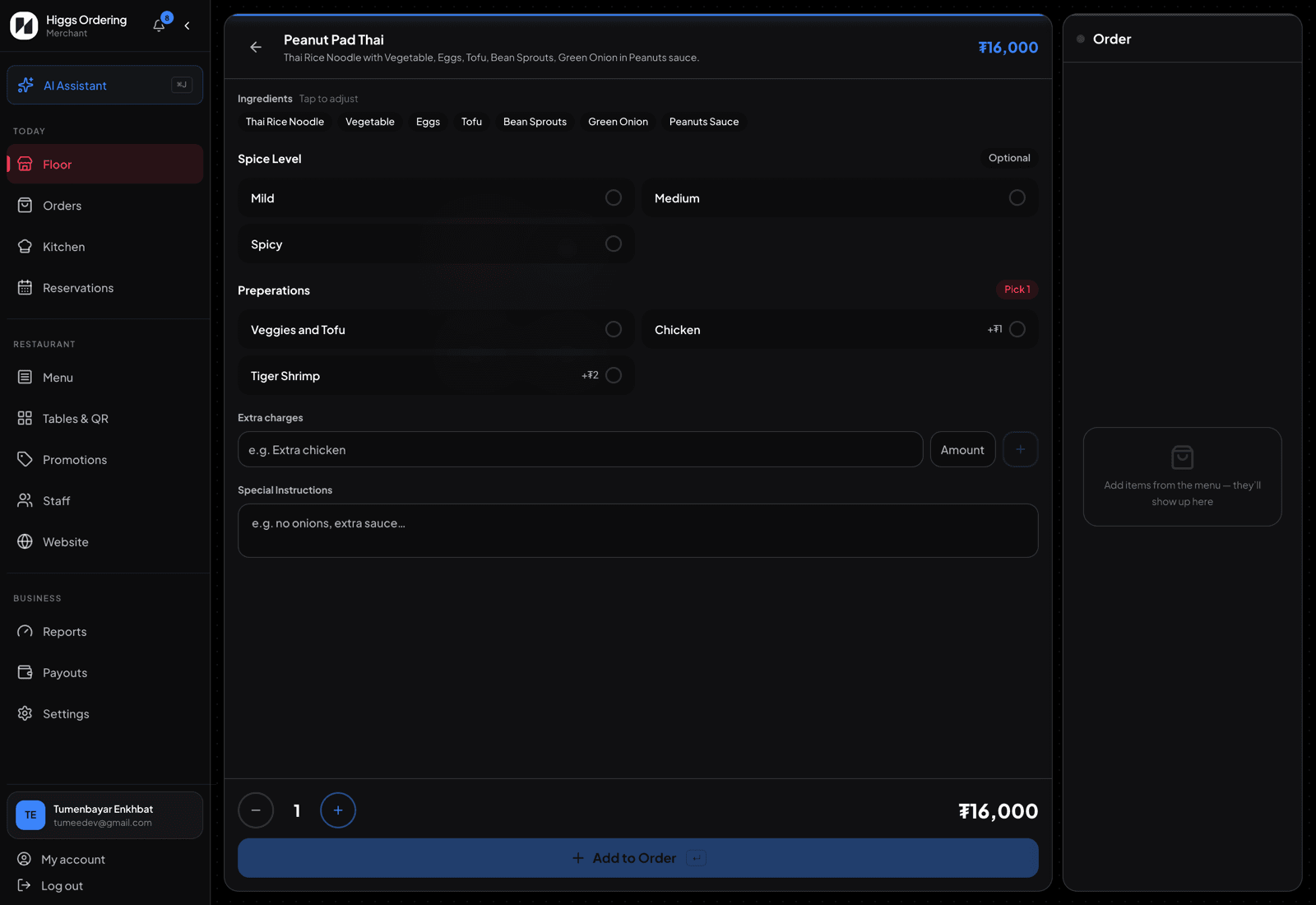
Ingredients, options, extra charges and instructions in one step. - 5
Need something the kitchen charges for on the fly? Add an extra charge to the line ("extra chicken", 3.00), or add a custom item with any name and price for something that isn’t on the menu at all.
- 6
Apply a coupon code if the guest has one, then place the order. It goes to the kitchen and appears on the table like any guest order.
TipCustom items and extra charges are staff-only — guests and the AI can’t create them, and custom items are left out of stock tracking and item-level sales figures on purpose.