Clock in, clock out & track hours
Staff punch themselves in and out from their own dashboard. Higgs matches each punch to their scheduled shift, so the Hours report shows what was planned against what was actually worked.
- 1
Staff open My Shifts and tap clock in at the start of their shift, then clock out at the end. That’s the whole flow for them.
- 2
Clocking in requires a shift on the roster for that day, and each scheduled shift can only be clocked once — that’s what stops accidental double punches.
- 3
Optionally require staff to be at the restaurant: on the Hours tab, stand in the restaurant, tap "use my current location" to set the pin, and set a radius. Clock-in is then blocked from outside it. Clocking out is never blocked.
- 4
The Hours tab totals hours per person over any date range, and shows late minutes, early leaving, and "lost" time against the schedule.
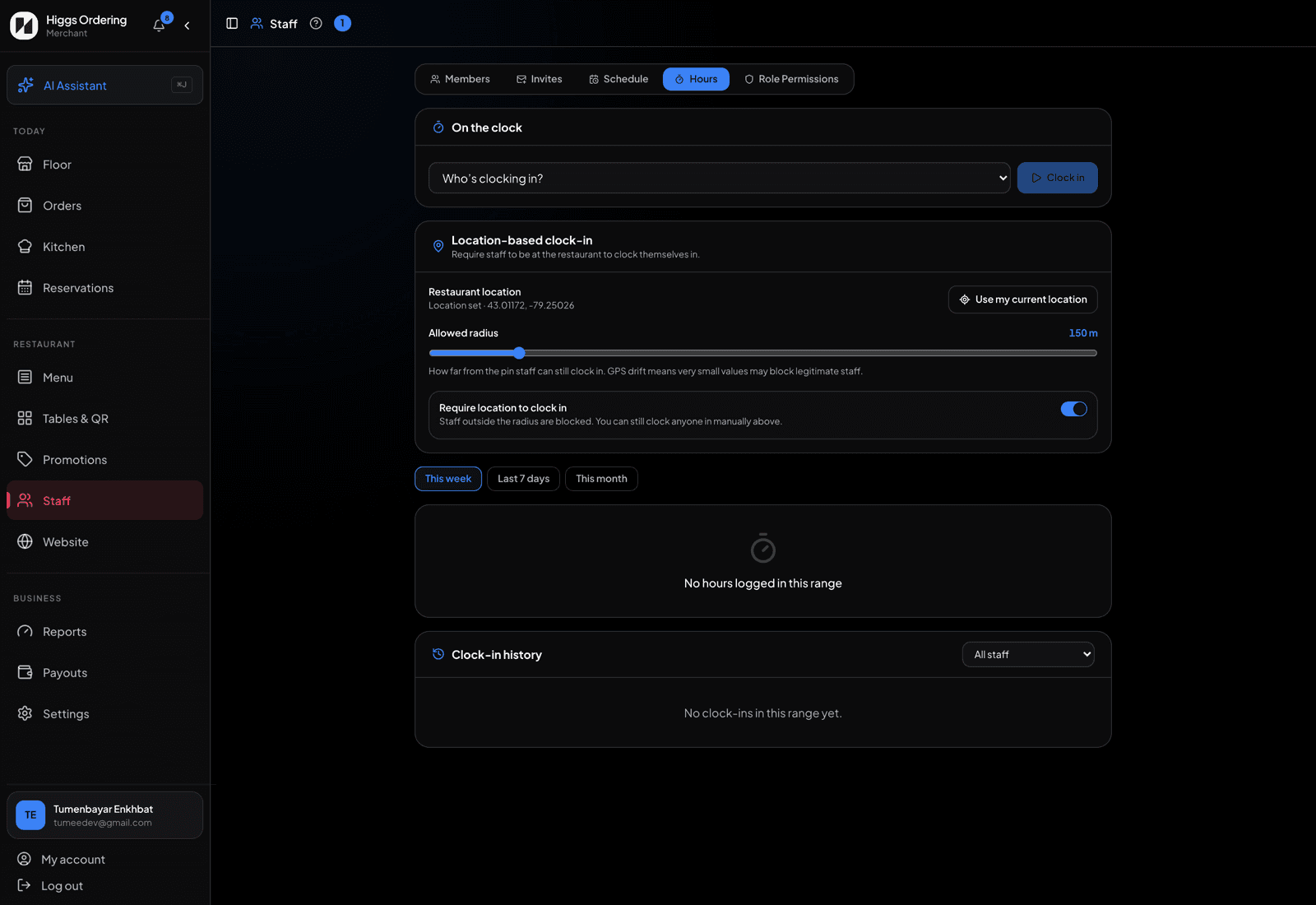
Hours worked against hours scheduled. - 5
As a manager you can still clock someone in or out yourself — those punches are recorded as manager overrides and skip the location check.
TipSet the location pin from a device standing inside the restaurant, not from your address — the pin is a GPS reading, and a radius of about 150 m absorbs normal phone drift.